The screenshot ledge
Every screenshot on a glass ledge under the menu bar.
All guides
Screenshots to the ledge
No screenshots yet. Take one with ⌘⇧4.
- 1
Take screenshots as always
⌘⇧3 ⌘⇧4 ⌘⇧5, or ⌃⌘⇧4.
- 2
Up to the ledge
And to the clipboard.
Open the ledge
No screenshots yet. Take one with ⌘⇧4.
A screenshot, and three ways to open the ledge.
- 1
Rest at the top center
- 2
Press ⌃⌥S
- 3
Or Show ledge
Copy, open or drag one
- 1
Click to copy
- 2
Drag it out
Double-click opens it.
- 3
✕ takes it off
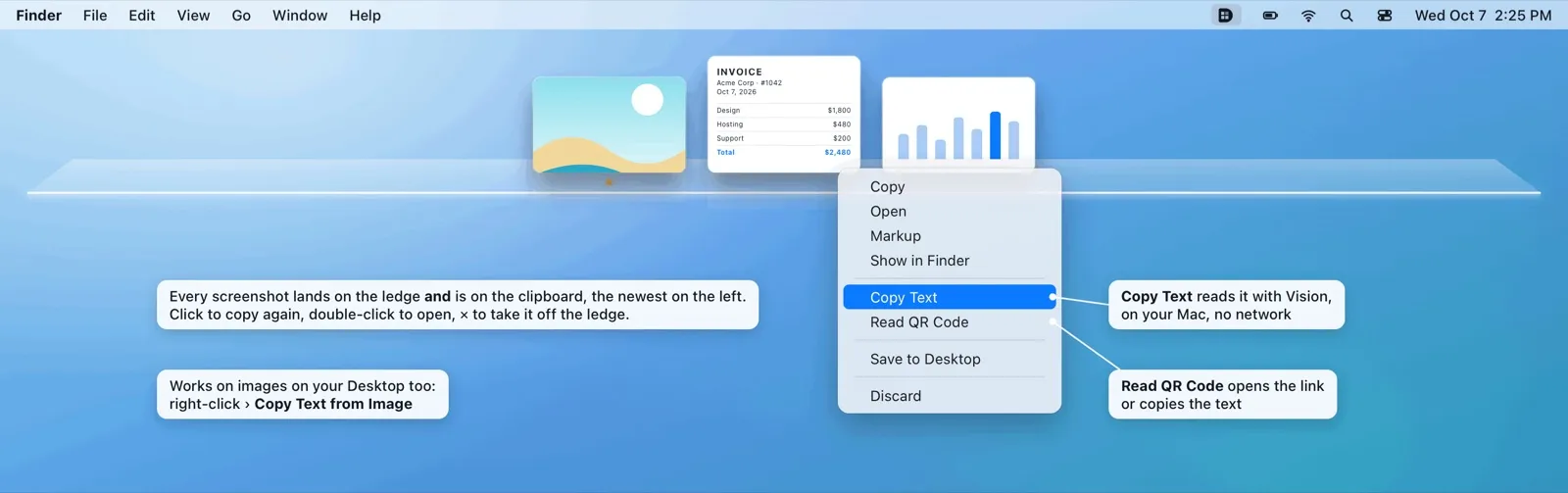
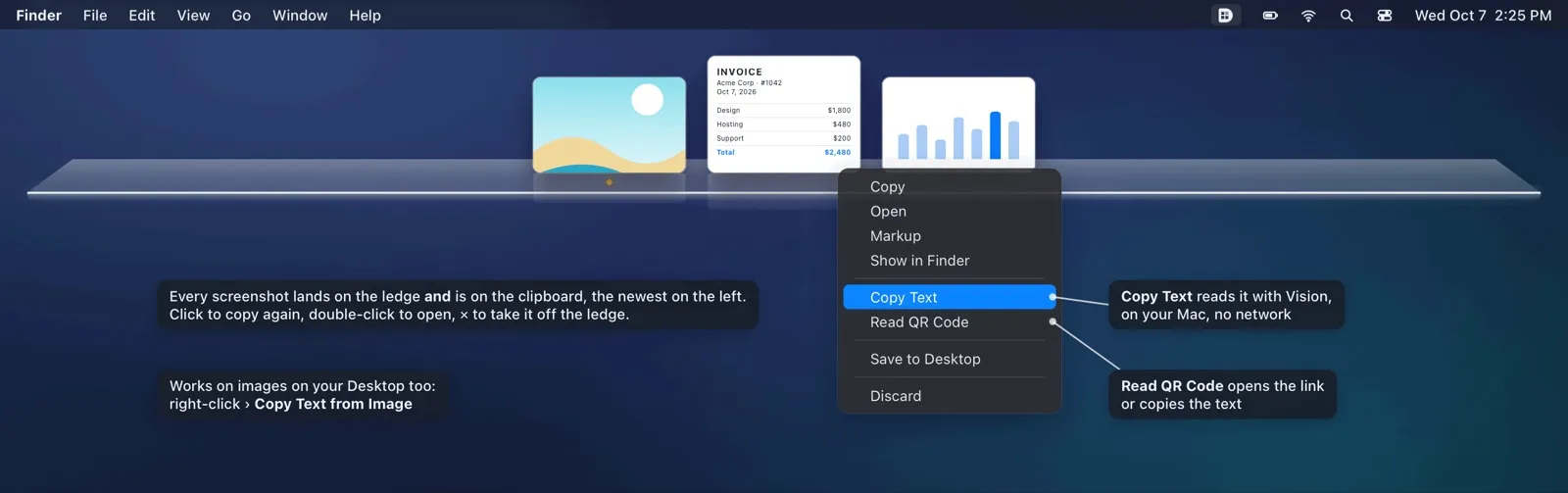 4
4Right-click for more
See it big, copy its text
· Select text and copy it with ⌘C · ← → to browse · Esc to closeDrag the edges or draw a new box · ↩ to crop · Esc to cancel · ⌘Z undoes it afterwards
INVOICEAcme Corp · #1042
Oct 7, 2026
Oct 7, 2026
Design$1,800
Hosting$480
Support$200
Total$2,480
- 1
Rest the pointer on it
- 2
Select text, press ⌘C
- 3
Links come alive
QR codes
- 1
A badge marks each QR
Click to open or copy.
- 2
Desktop images too
Crop it
- 1
Click Crop
- 2
Return crops, Esc cancels
Remove Shadow keeps just the window.
Saved over the original. Undo or ⌘Z for 8 seconds.
Many at once
- 1
Pick with the circle
Or ⌘-click them.
- 2
Then act on all
Delete, and undo
- 1
A whole day, or all
Both ask twice.
- 2
Undo for 8 seconds
Or ⌘Z.
The ledge by keyboard
- ←→Choose one
- ↩Copy it
- ⌘YSee it big
- ⌘⌫Move to the Trash
- ⌘ZUndo the delete
- EscClose the ledge
Settings
- 1
Settings › Ledge
- 2
VoiceOver and Reduce Motion
With Reduce Motion, nothing flies.
Still stuck? Write to soporte@desklot.com. We answer within 2 business days. Support
Try free